
Open and edit a meal
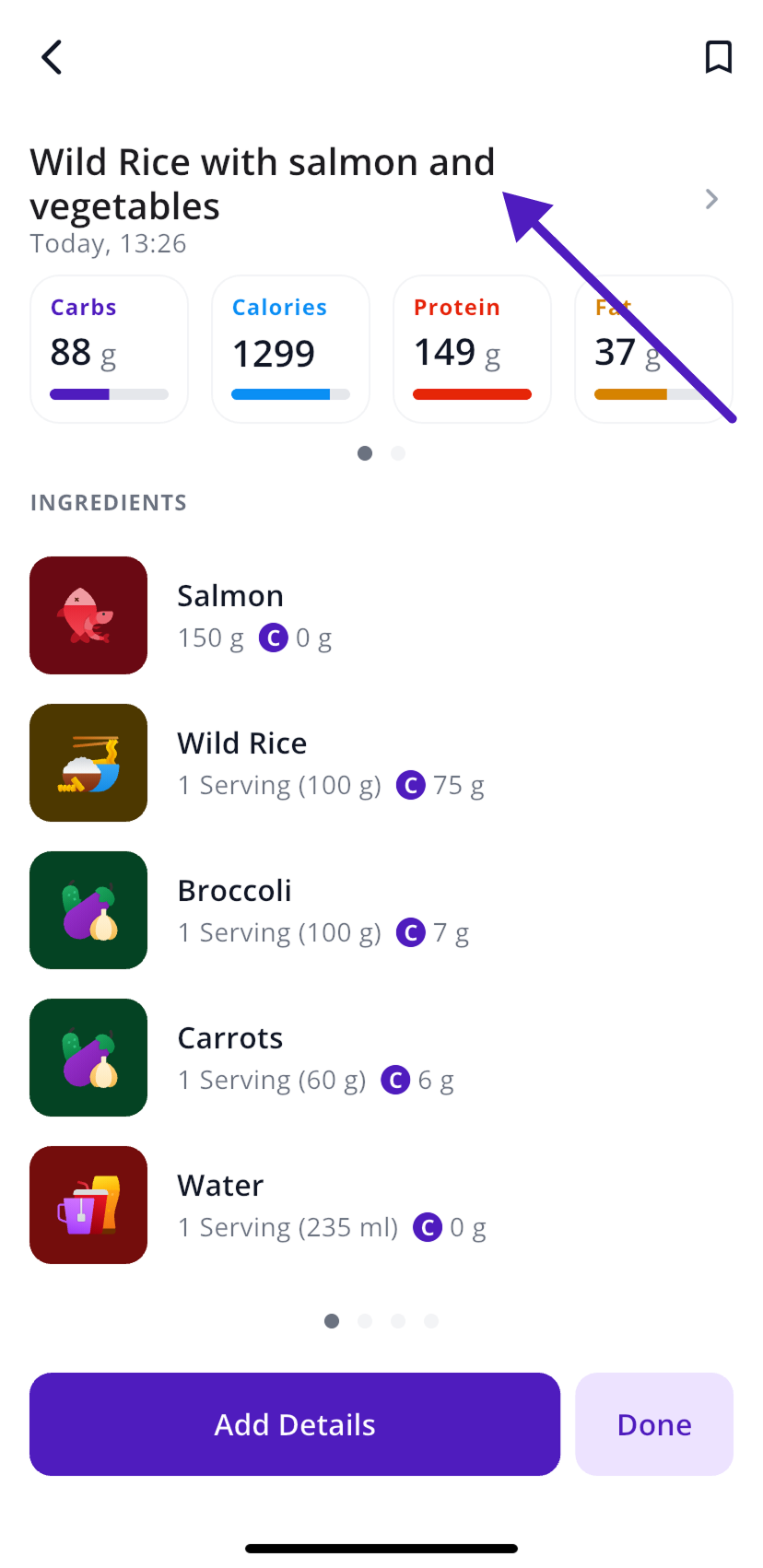
Tap the meal on the Today tab (or its dot on the glucose graph), then tap the pencil icon at the top.
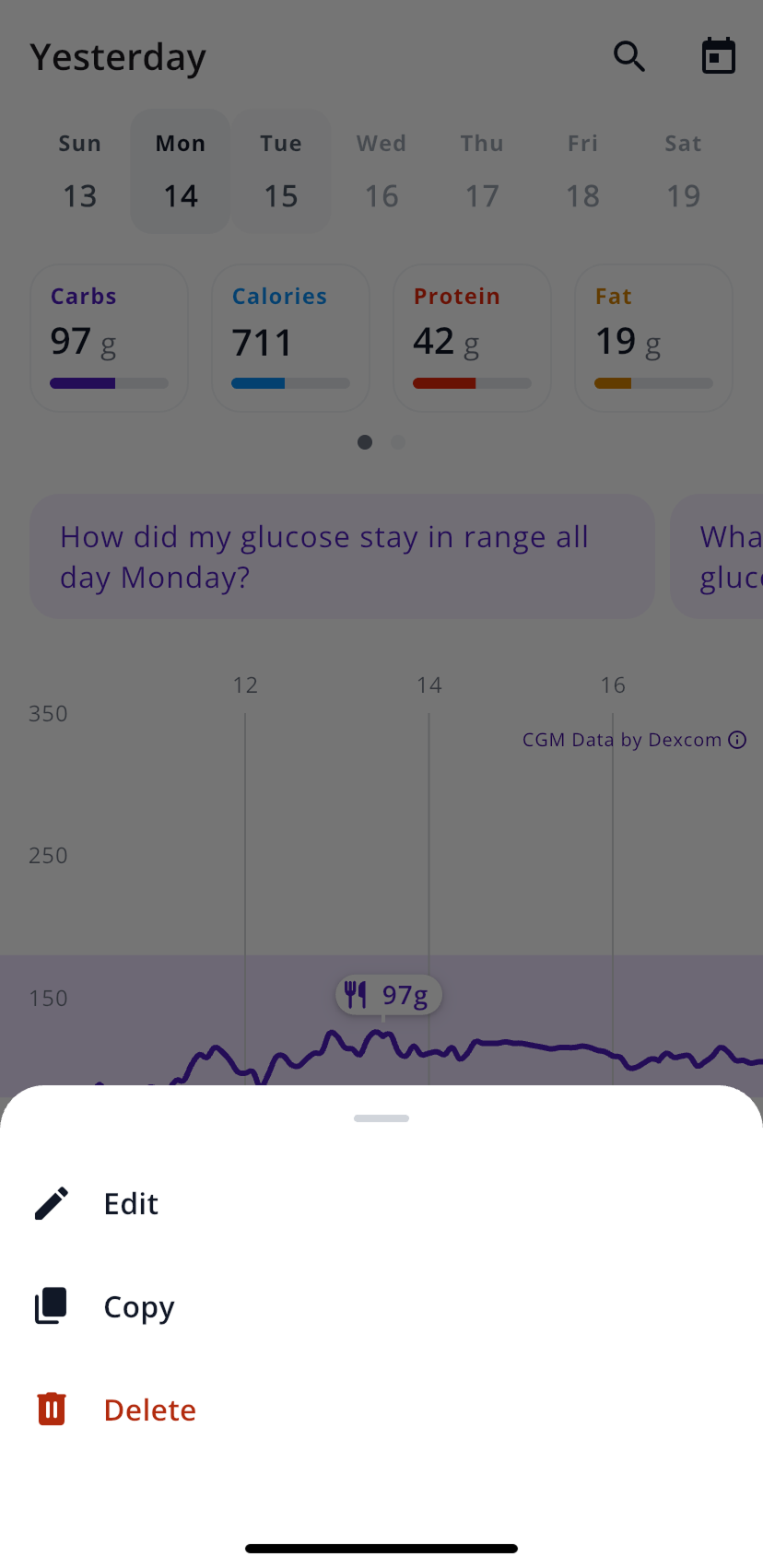
There’s also a shortcut: long-press a meal on Today to get a menu with Edit, Copy and Delete.
Change an amount
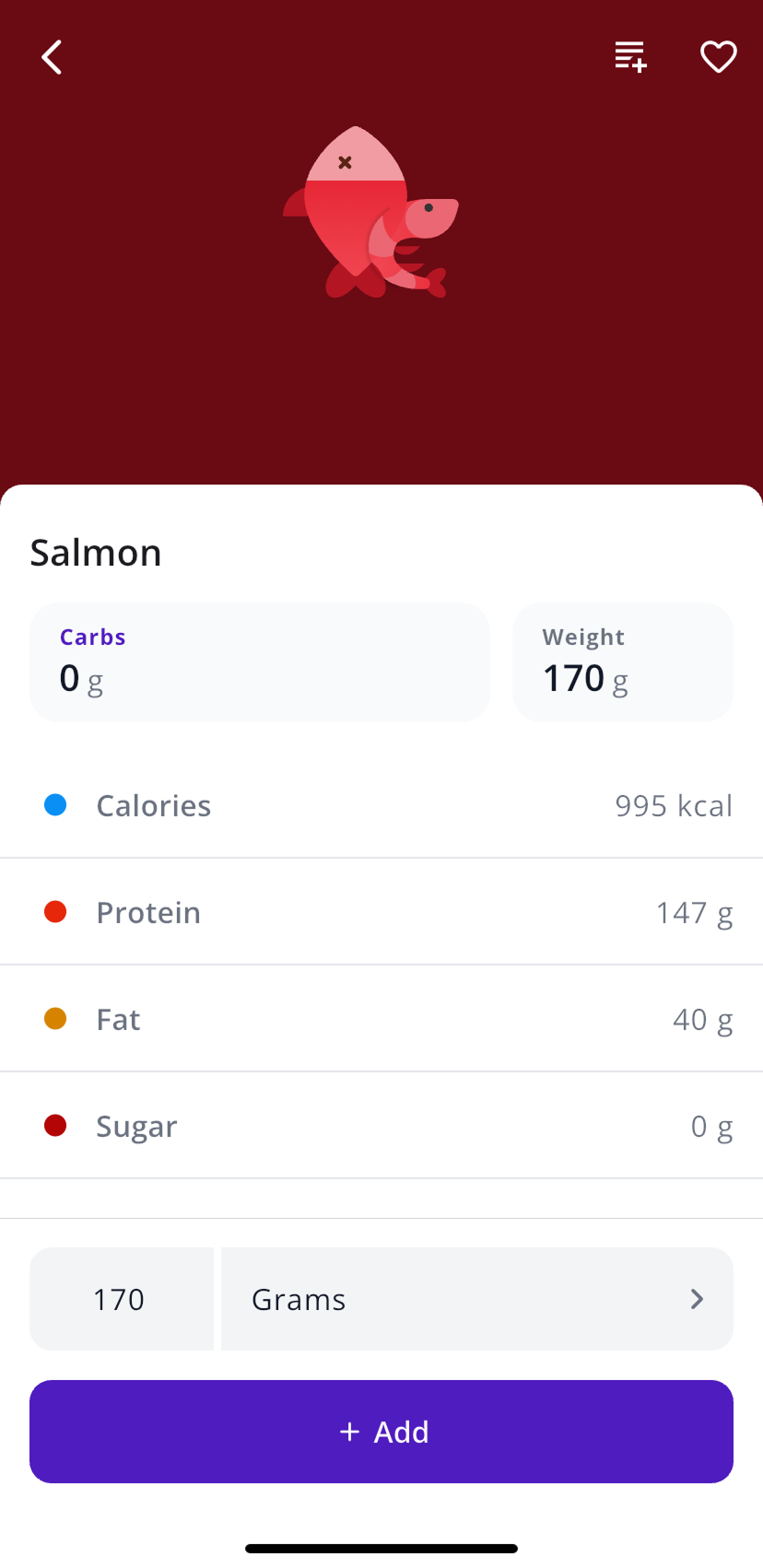
- In edit mode, tap the food.
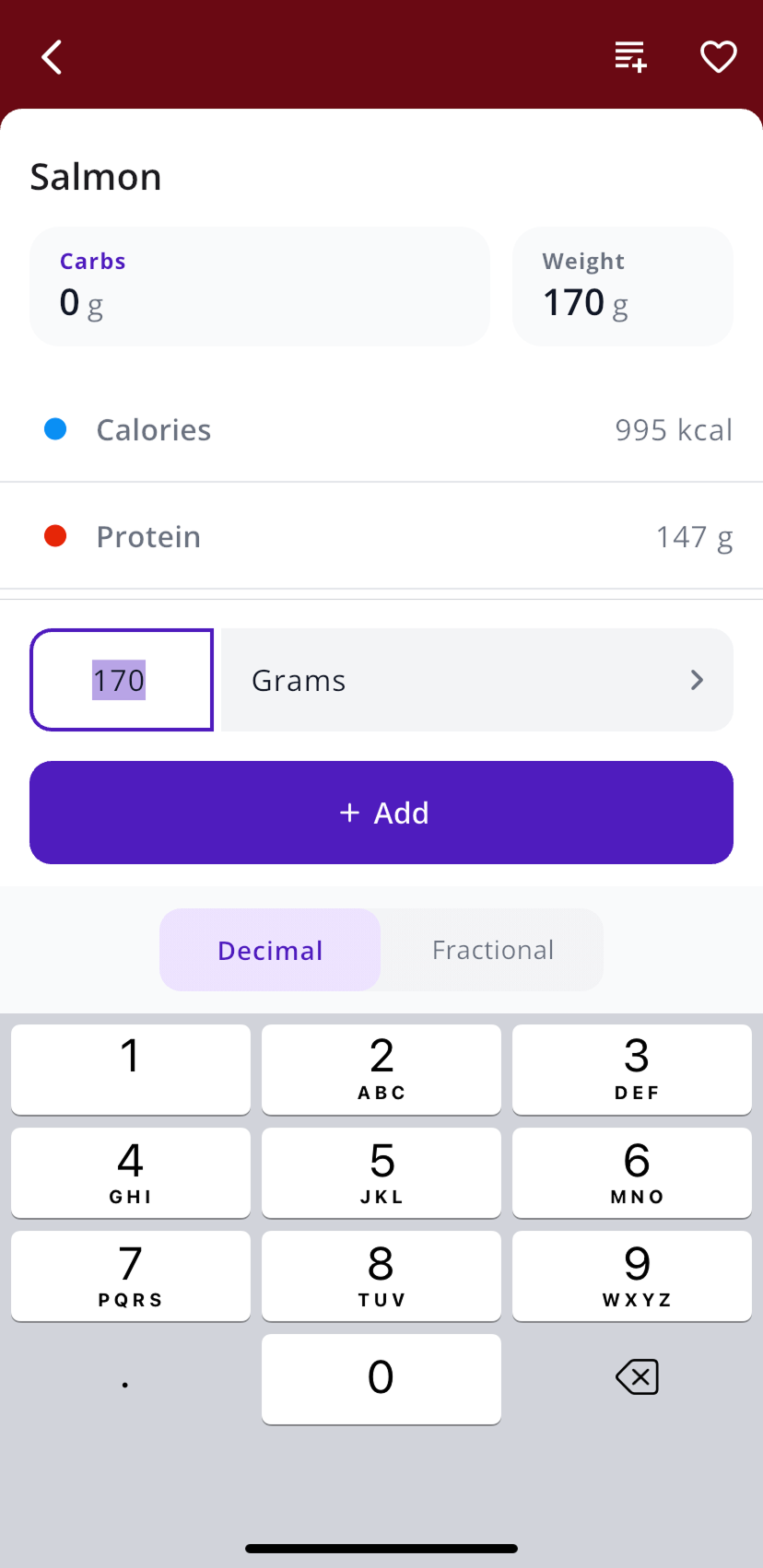
- Tap the amount and type the new number. The Decimal and Fractional switch above the keypad is handy for amounts like half a cup.
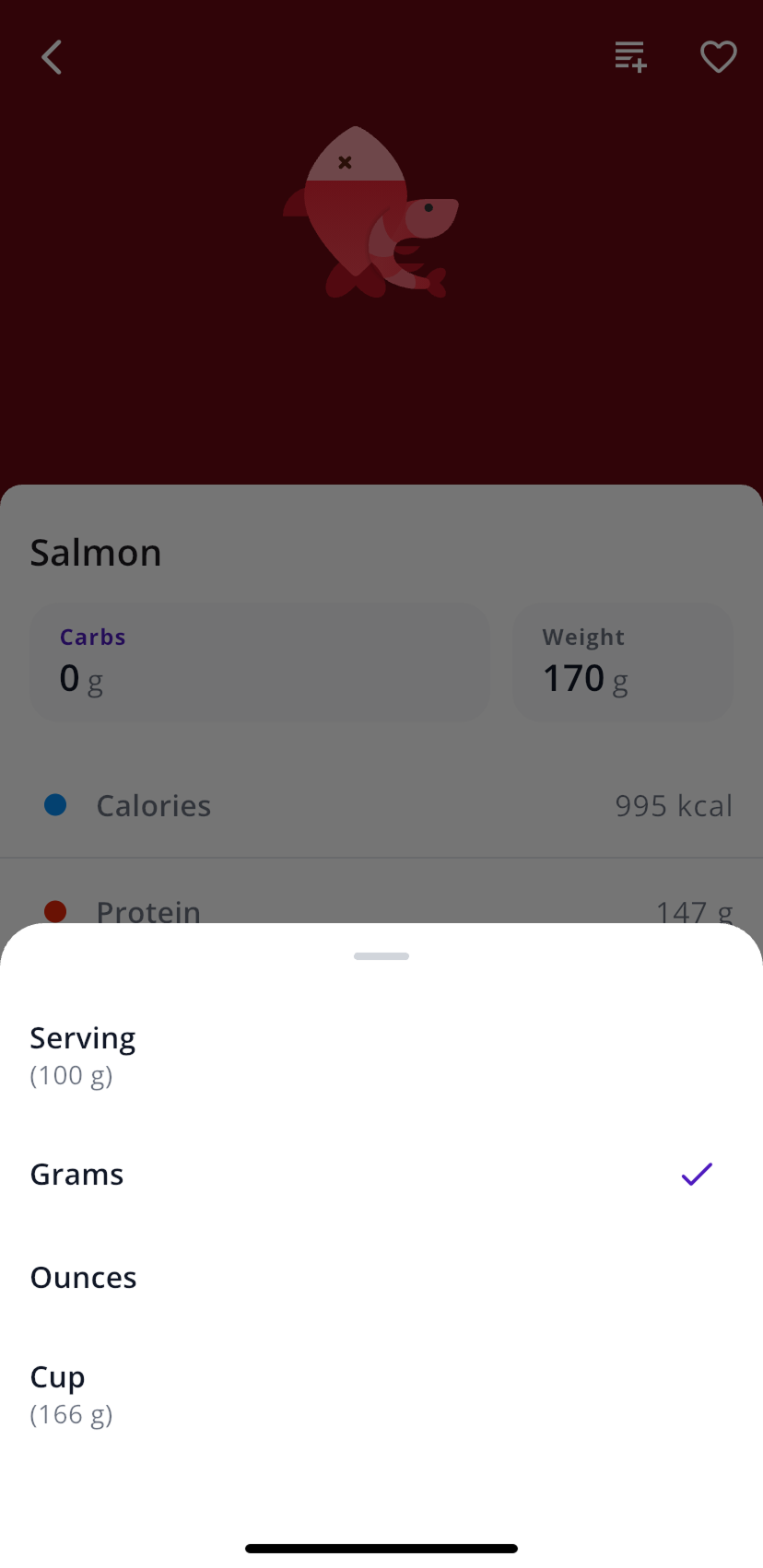
- To use a different unit, tap the one next to the amount (for example Grams) and pick another. The choices depend on the food, so you might see a serving, ounces or a cup.
- Tap Save. If you’re adding a new food rather than changing one, the button says Add.
Add or remove foods
In edit mode, search for anything missing with Add more at the bottom, or tap the camera icon next to it. To take a food out, tap the small x on its row. Your changes save when you leave the screen.
Rename a meal or change its time
- Open the meal and tap its name and time at the top.
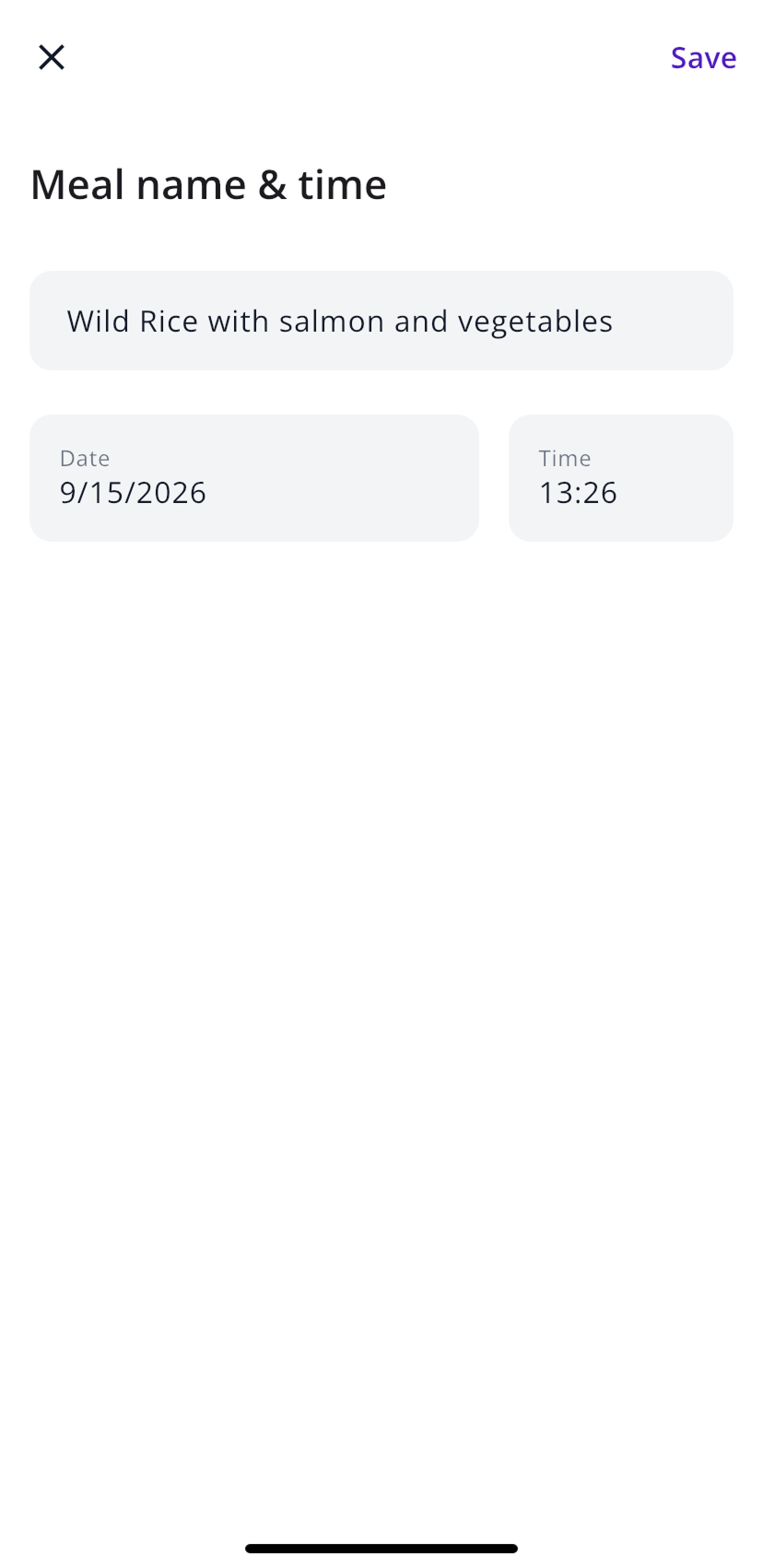
- On Meal name & time, change the name, Date or Time.
- Tap Save at the top right.
Breakfast, lunch, dinner or snack
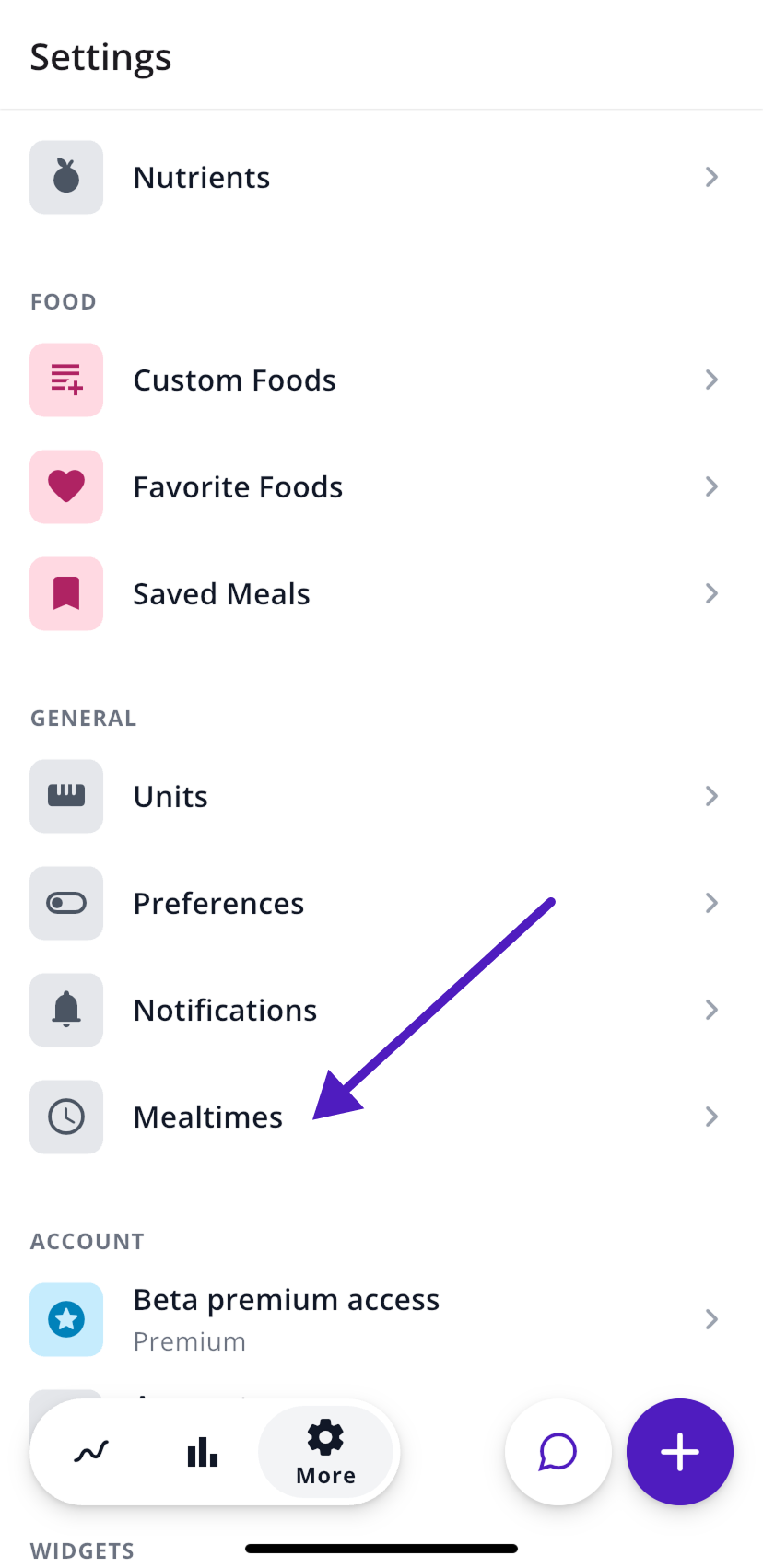
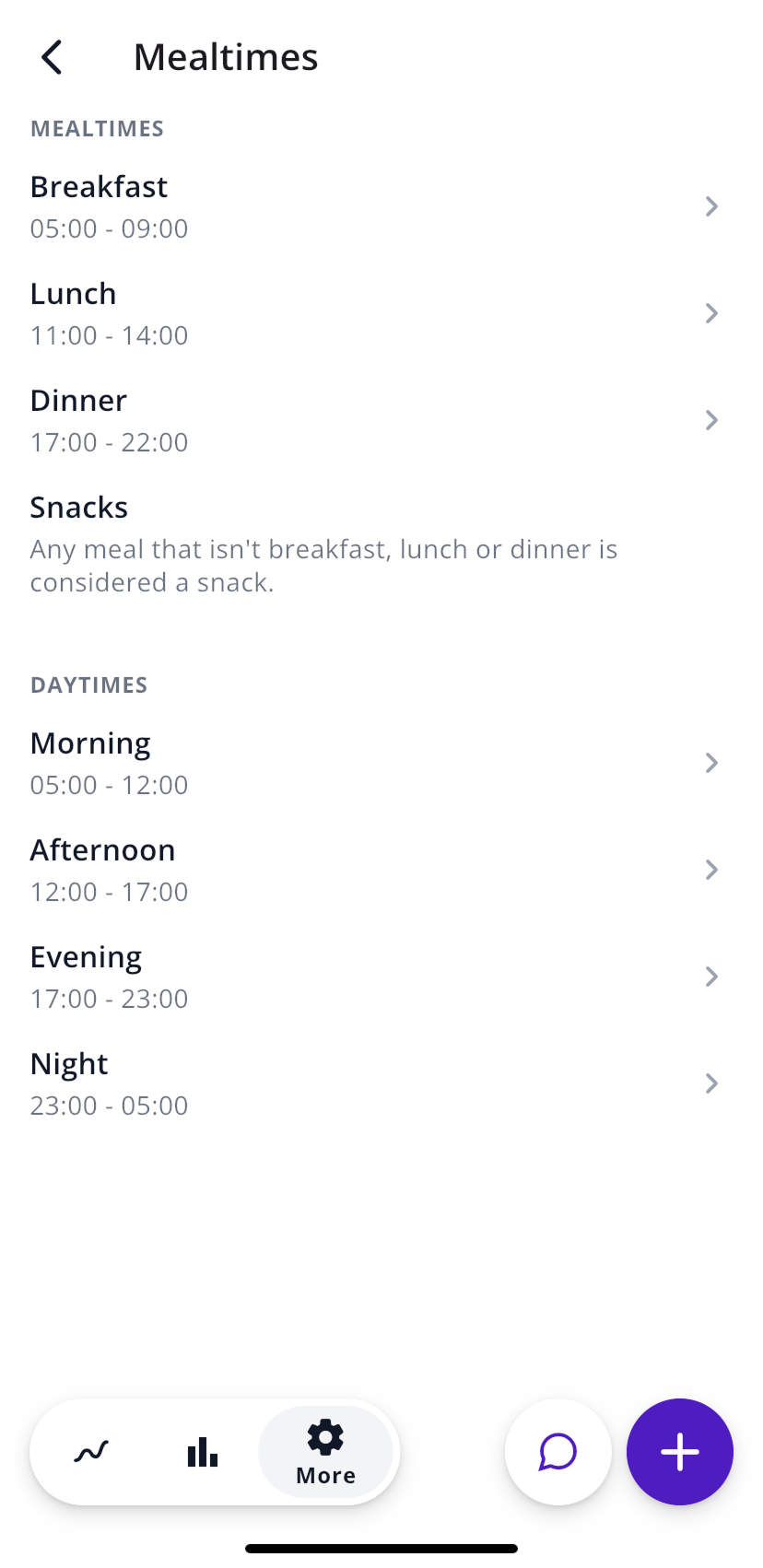
You can’t pick the meal type yourself. SNAQ goes by when you ate and the time ranges under More, then General, then Mealtimes. If lunch is set to 11 a.m. to 2 p.m., a meal at 12:30 counts as lunch. Anything outside breakfast, lunch and dinner is a snack.
If a meal ends up in the wrong spot, change its time or adjust the ranges.
Delete a meal
Open the meal, tap the three dots at the top right and choose Delete, or long-press it on Today. If you delete the wrong one, tap Undo right away.
Copy a meal
Long-press the meal on Today and tap Copy, or open it and use the three dots at the top right. The copy is logged at the current time, so you only need to change what was different.
Save meals you eat often
Tap the bookmark icon at the top of a meal to save it. The next time you have it, tap +, then Meal, then Saved Meals, and pick it. SNAQ opens a copy at the current time for you to check and save.
All your saved meals live under More, then Food, then Saved Meals.
Favorite foods
Tap the heart icon at the top right of any food’s detail screen. Favorites come up first when you search, and the full list is under More, then Food, then Favorite Foods.
Create your own foods
When a food isn’t in the database, or you’d rather use the numbers from your own recipe or package, you can add it yourself from any of these:
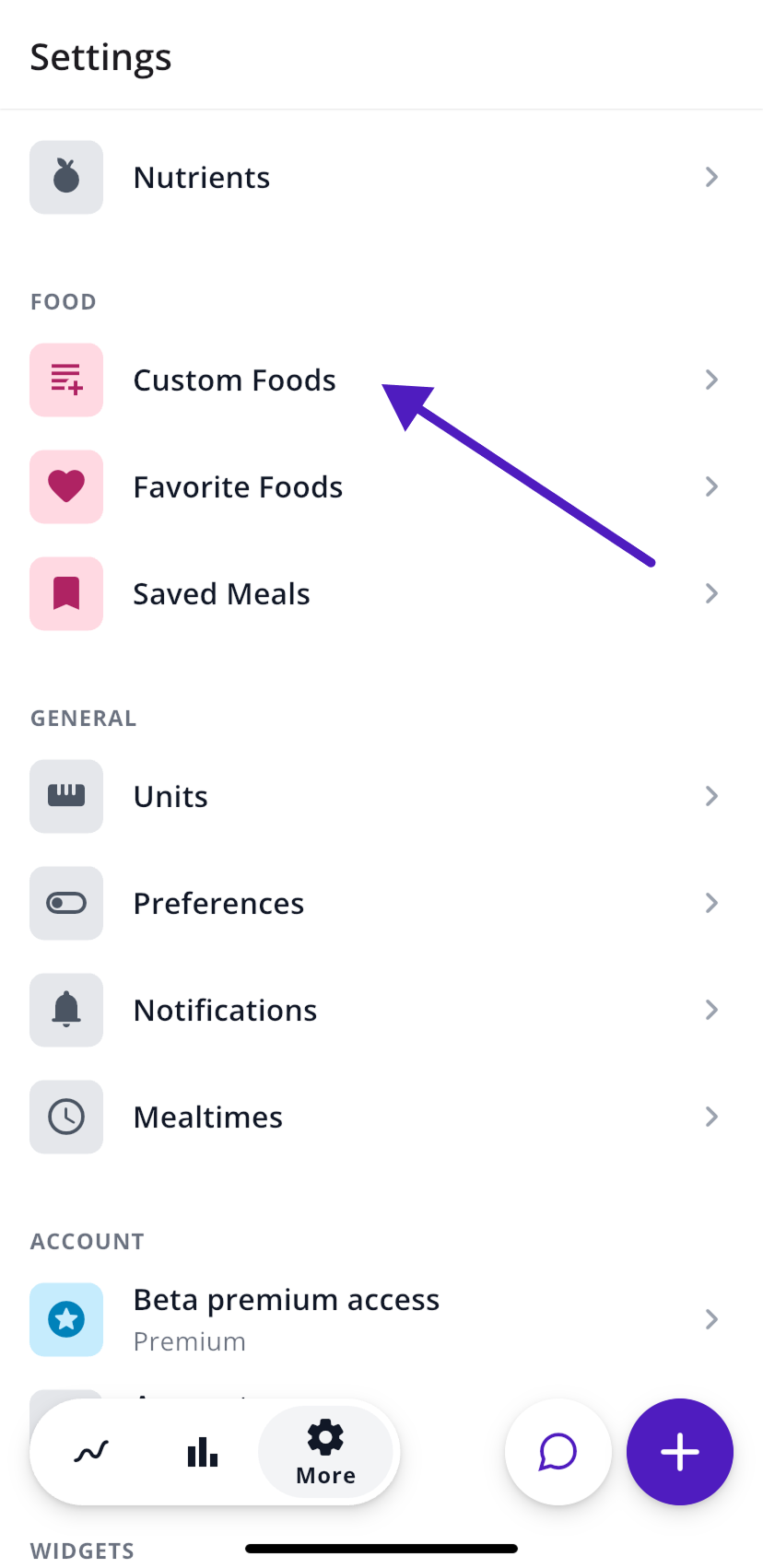
- More, then Food, then Custom Foods, and the + at the top right
- Add food, which shows up when a search comes back empty
- a nutrition label scan
SNAQ asks for a name (the brand is optional), a food group, whether it’s a liquid, the amount the values are for, and then the nutrition values. Only Calories is required. Fats, Protein, Carbs and Fibers are up to you, and you can add serving sizes or tap Skip. Tap Save food item when you’re done.
Custom foods are private to you and show up in search under Custom Foods. To edit, copy or delete one, open Custom Foods and tap the three dots on its row.
To start from a food that’s already in the database, open it, tap the list icon at the top right and choose Create custom food.
Change your units
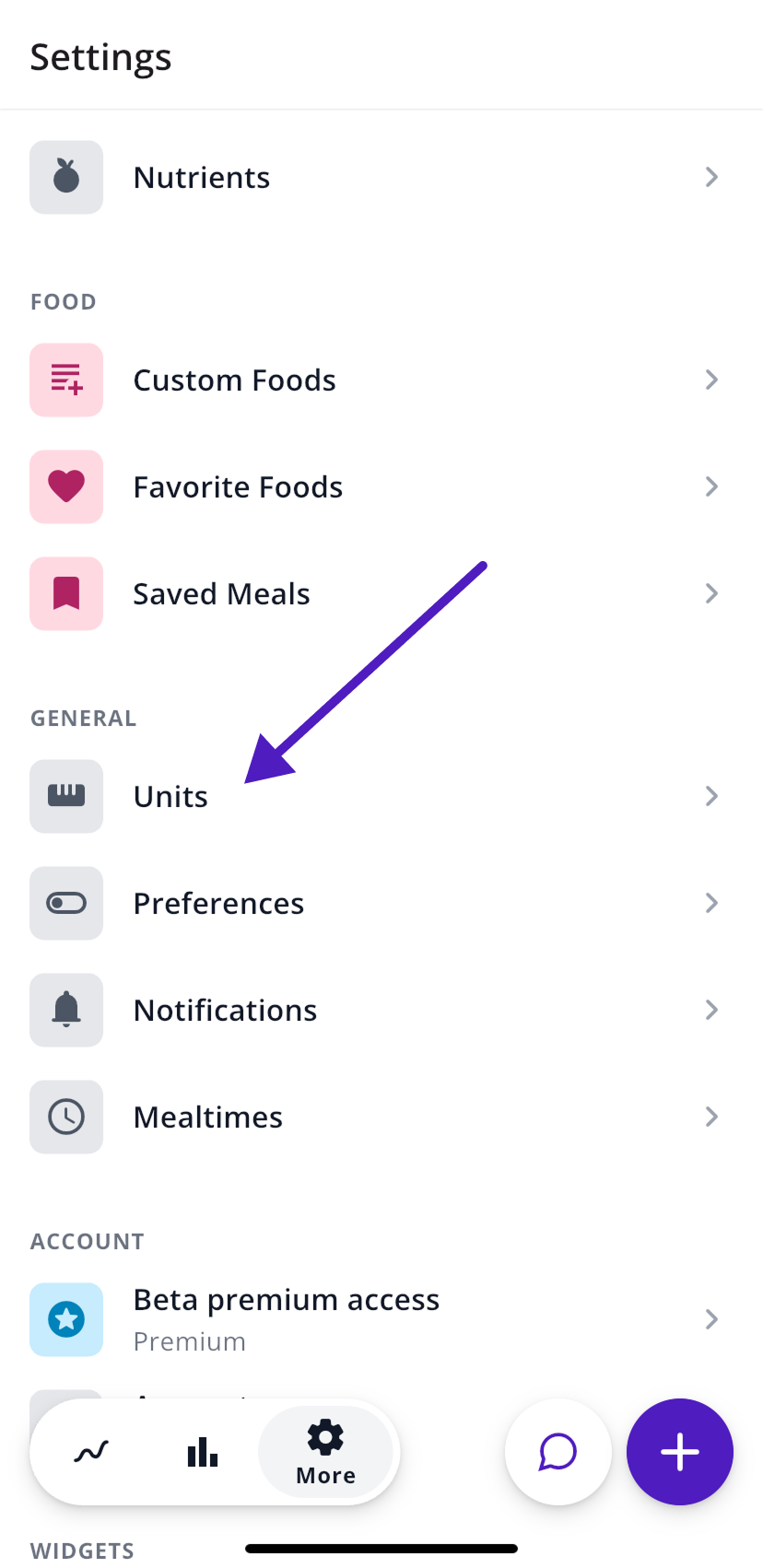
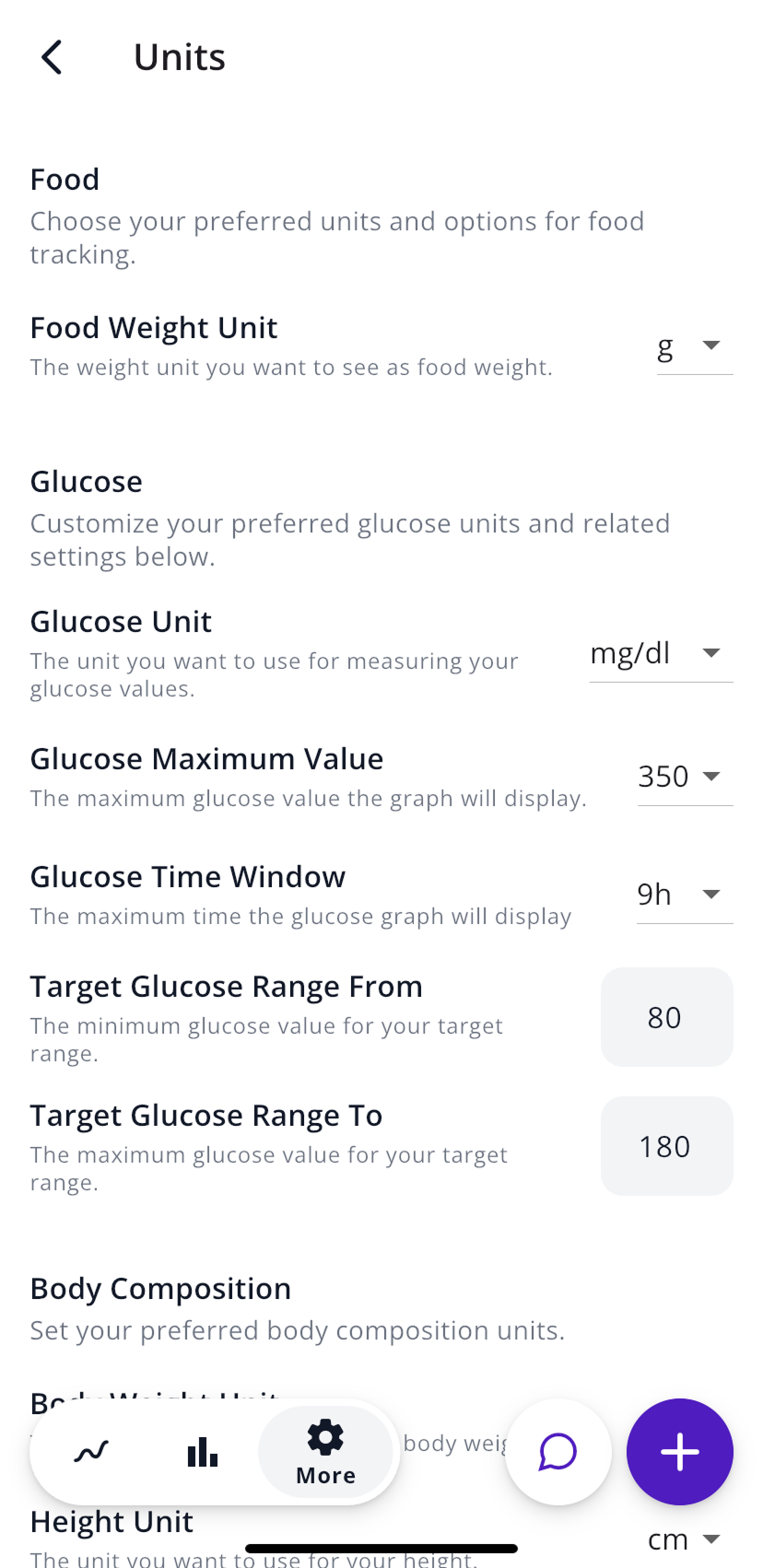
- Grams or ounces for food: go to More, then General, then Units, and change Food Weight Unit. Your glucose unit and target range are on the same screen.
- The amount SNAQ suggests when you add a food: go to More, then General, then Preferences, then Default Serving Size, and choose Serving, Weight, Carbs or Net Carbs.
Steps last checked against the app in September 2026.
Still stuck?
Email us at support@snaq.io and tell us what you've tried so far. We usually reply within one business day.