
On Android, SNAQ gets glucose readings from Health Connect. If your CGM or meter app saves its readings there, SNAQ can use them. (SNAQ doesn’t connect to Google Fit.)
Before you start
You’ll need Health Connect on your phone. It comes built into newer versions of Android. If your phone doesn’t have it, SNAQ sends you to the Play Store to install it.
Step 1: let your device’s app write to Health Connect
Your CGM or meter app may ask about this during setup. To check it yourself:
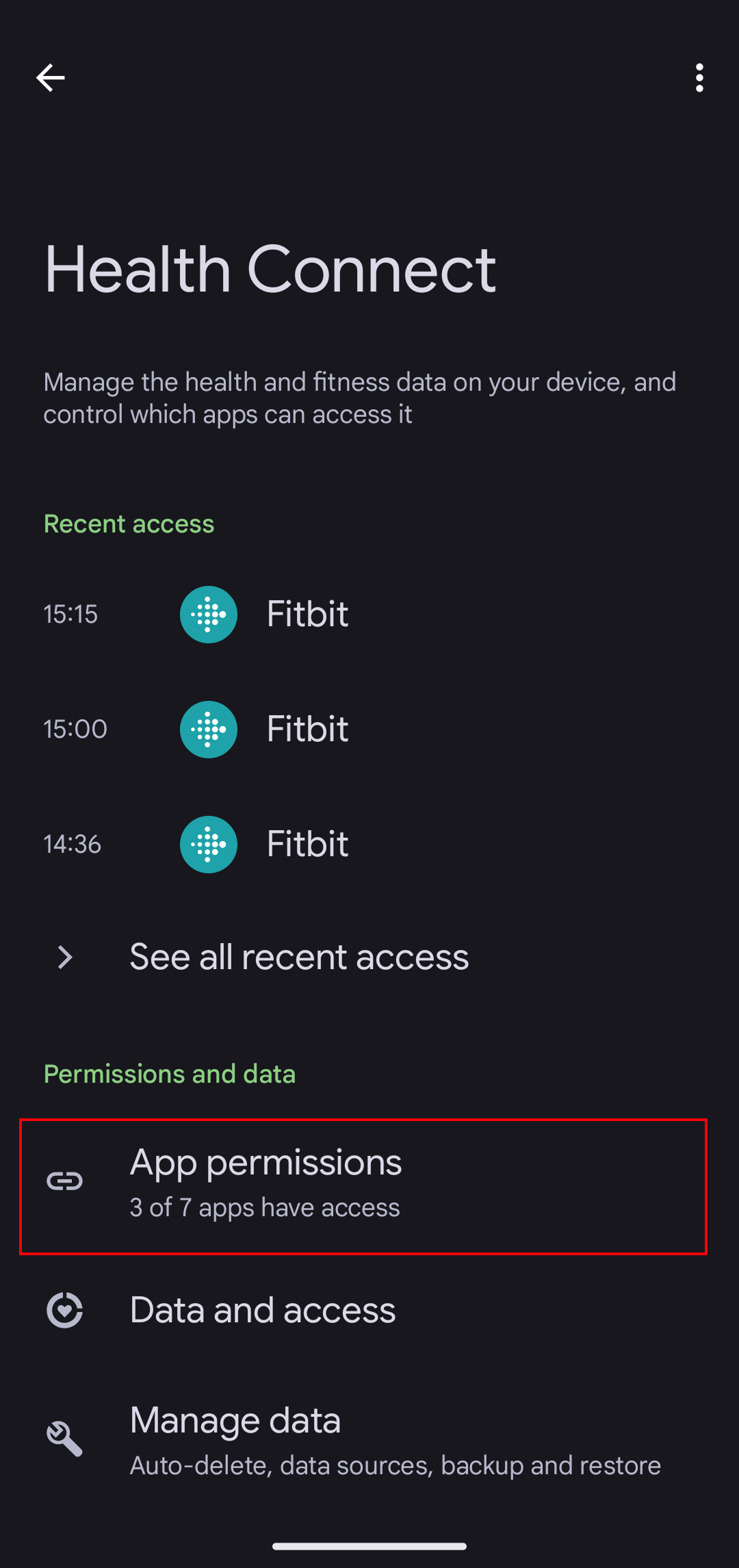
- Open Health Connect. If you can’t find it, search for it in your phone’s settings.
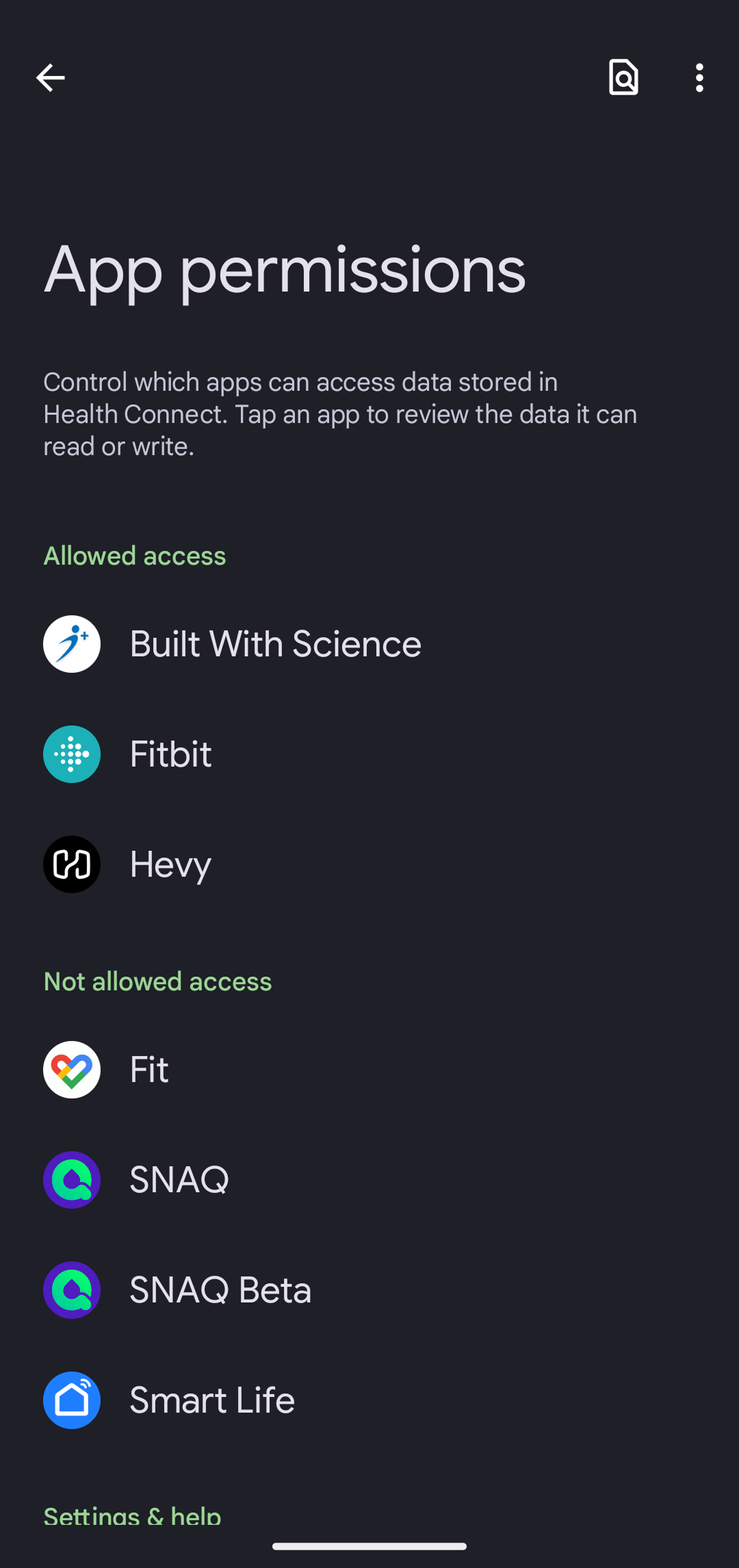
- Tap App permissions.
- Tap your device’s app, for example Dexcom.
- Make sure it’s allowed to write Blood glucose.
If the app isn’t on the list, it doesn’t work with Health Connect, and its readings can’t reach SNAQ this way.
Step 2: let SNAQ read from Health Connect
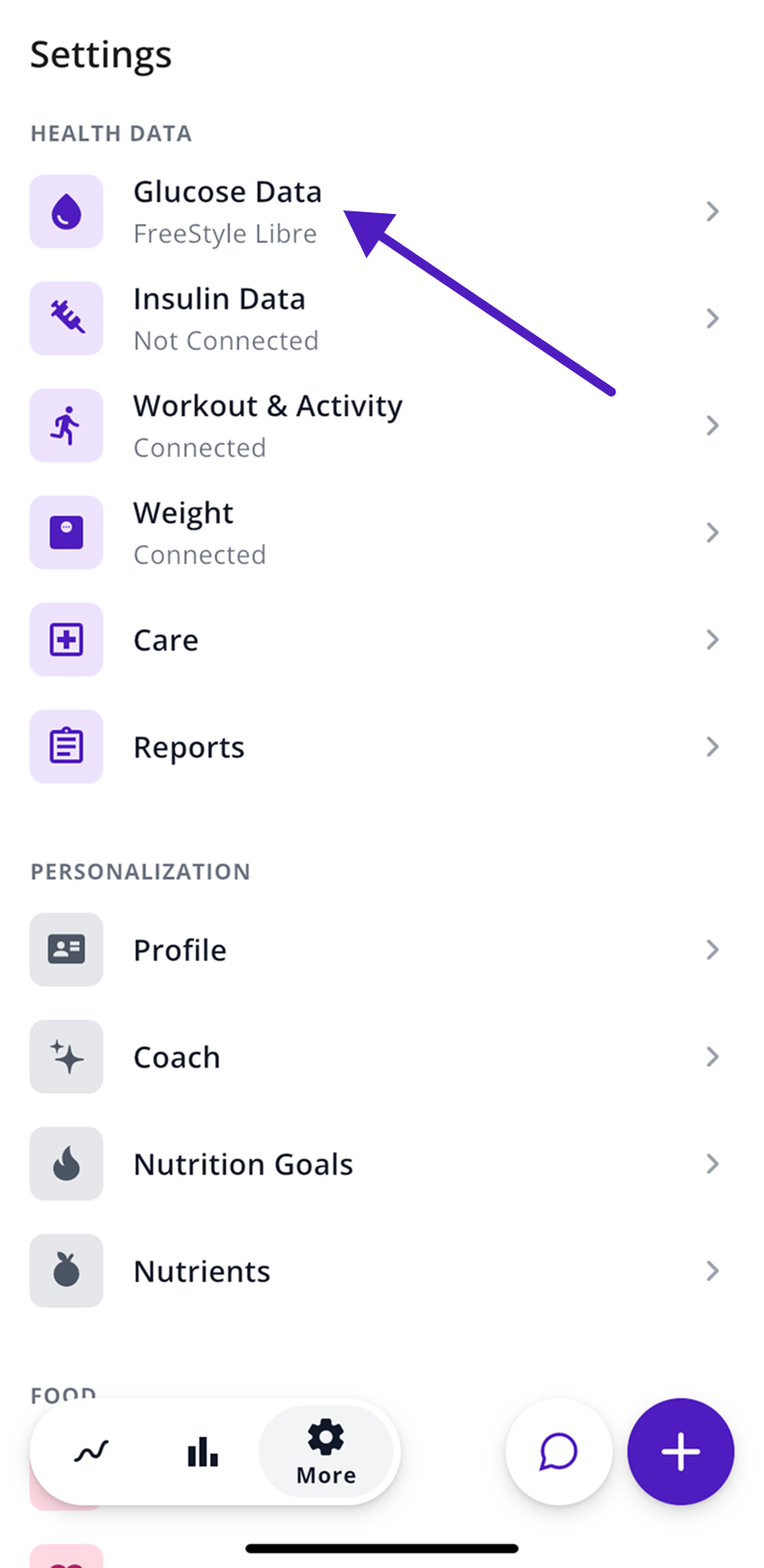
- In SNAQ, open the More tab (the gear icon).
- Under Health Data, tap Glucose Data.
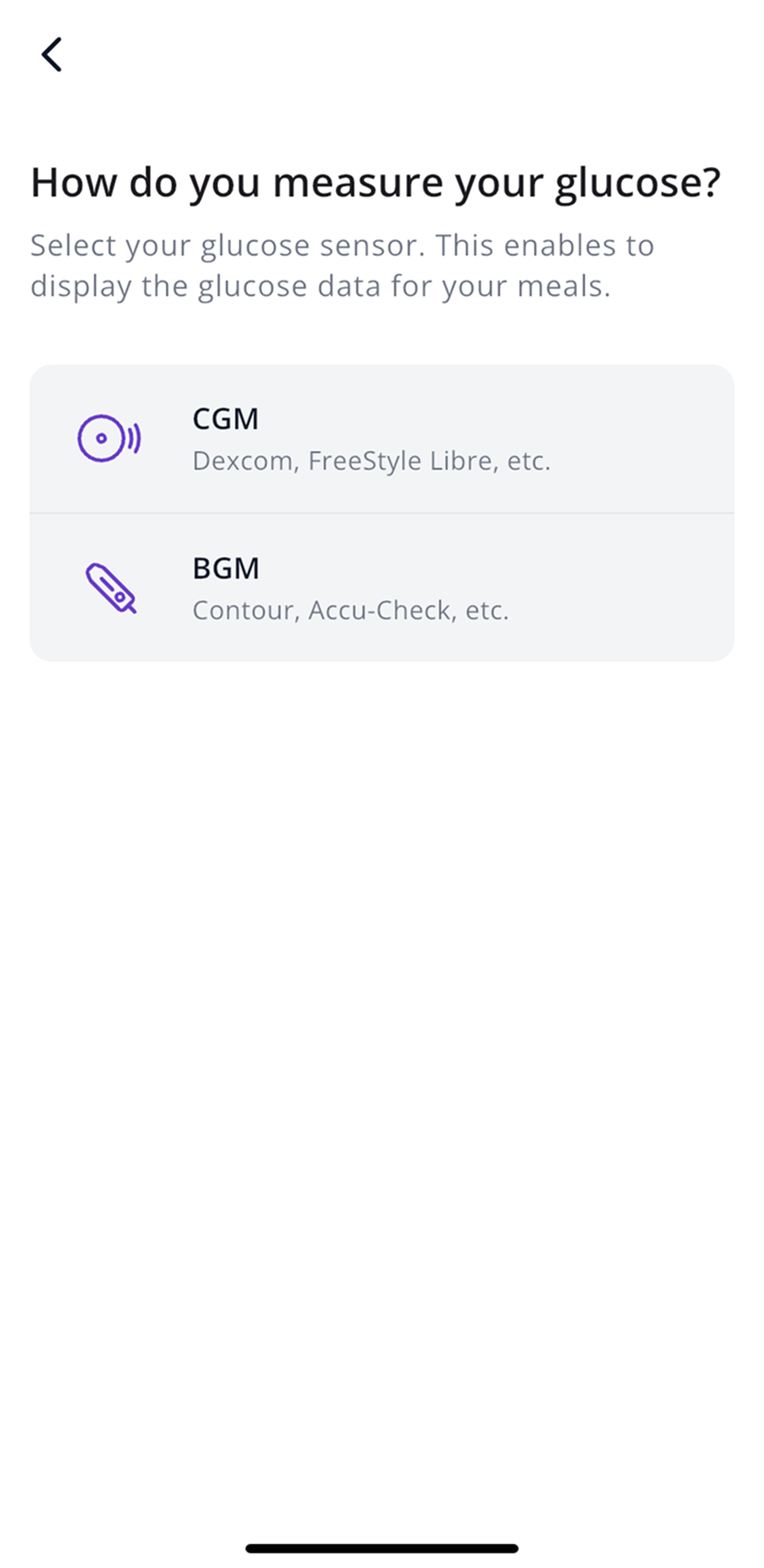
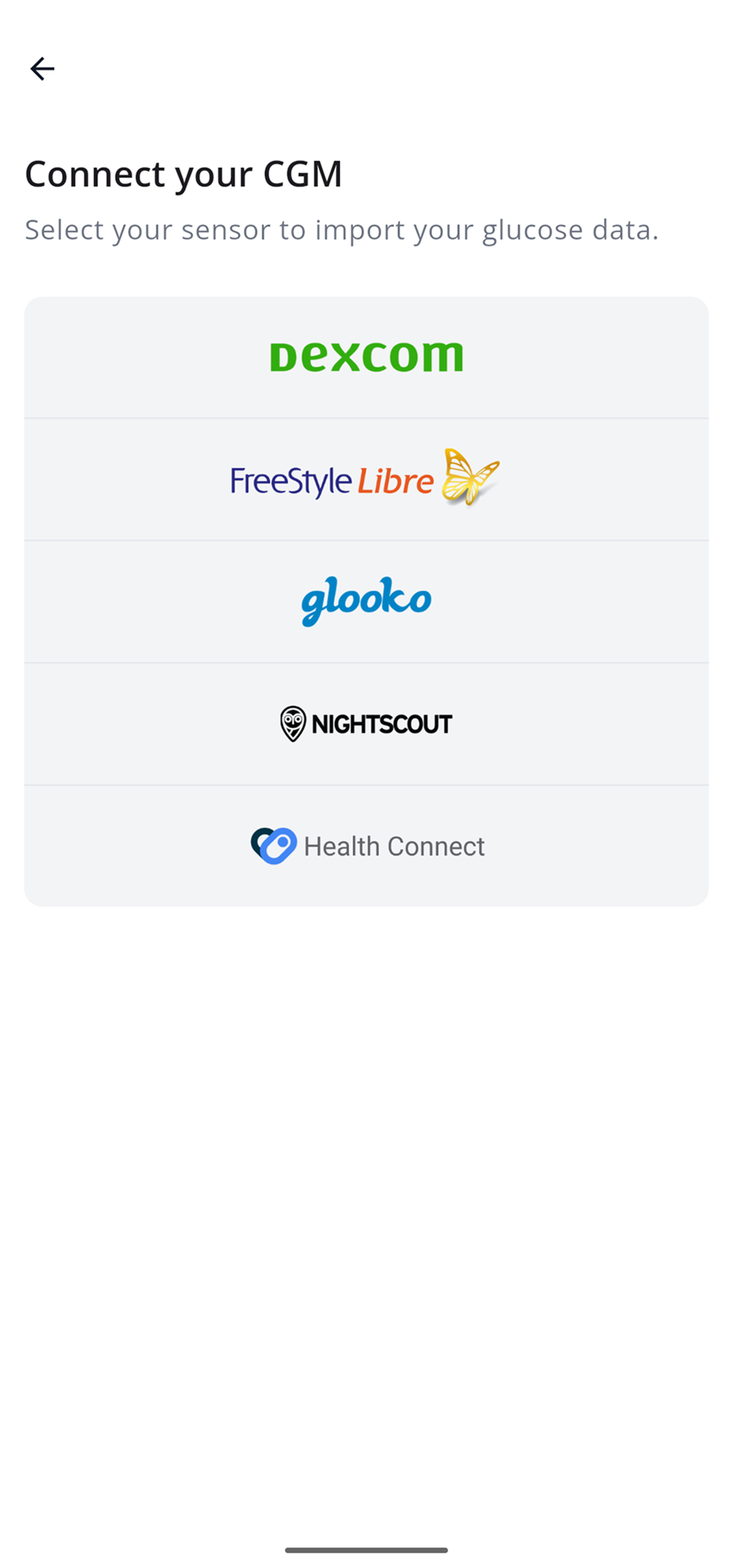
- Choose CGM or BGM, then Health Connect in the brand list.
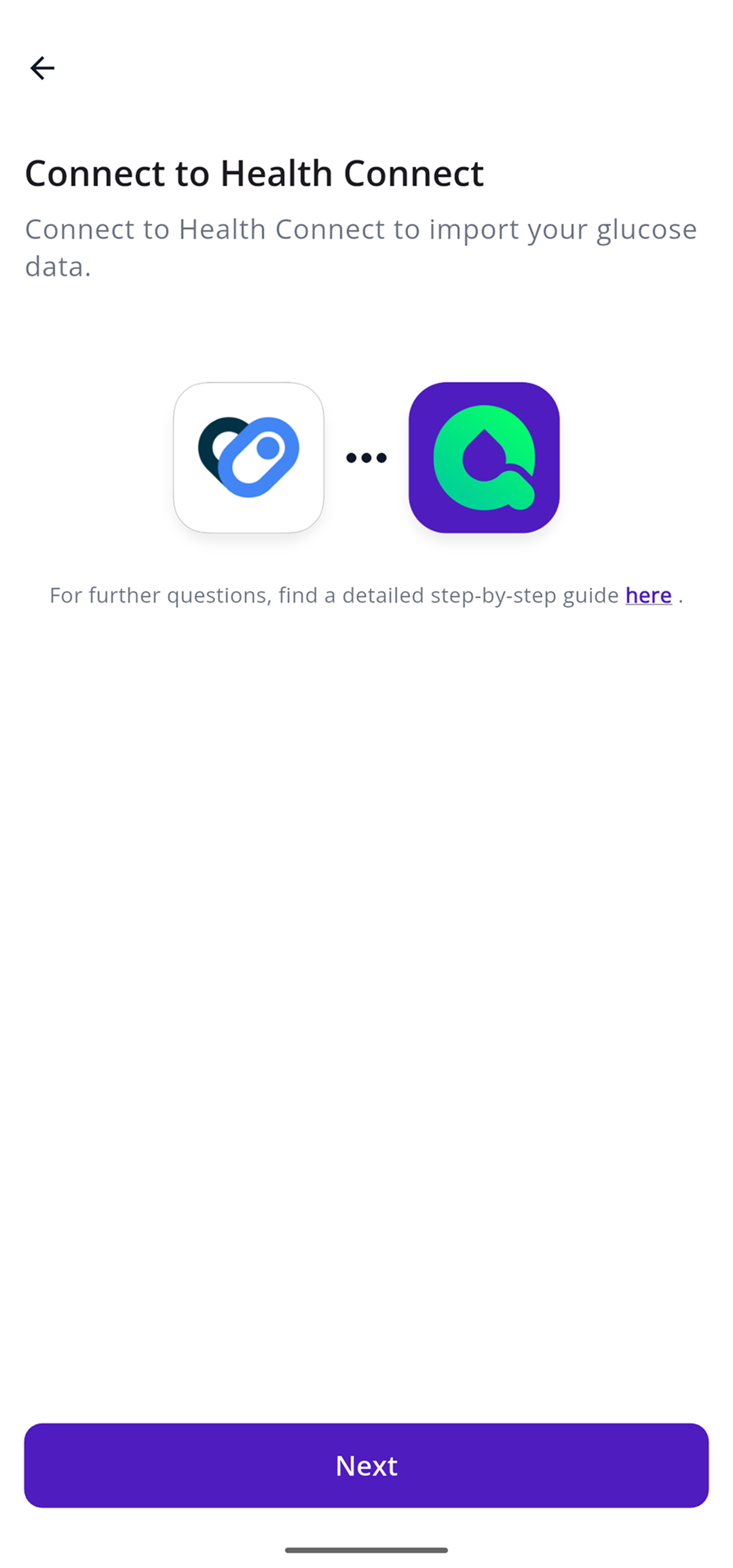
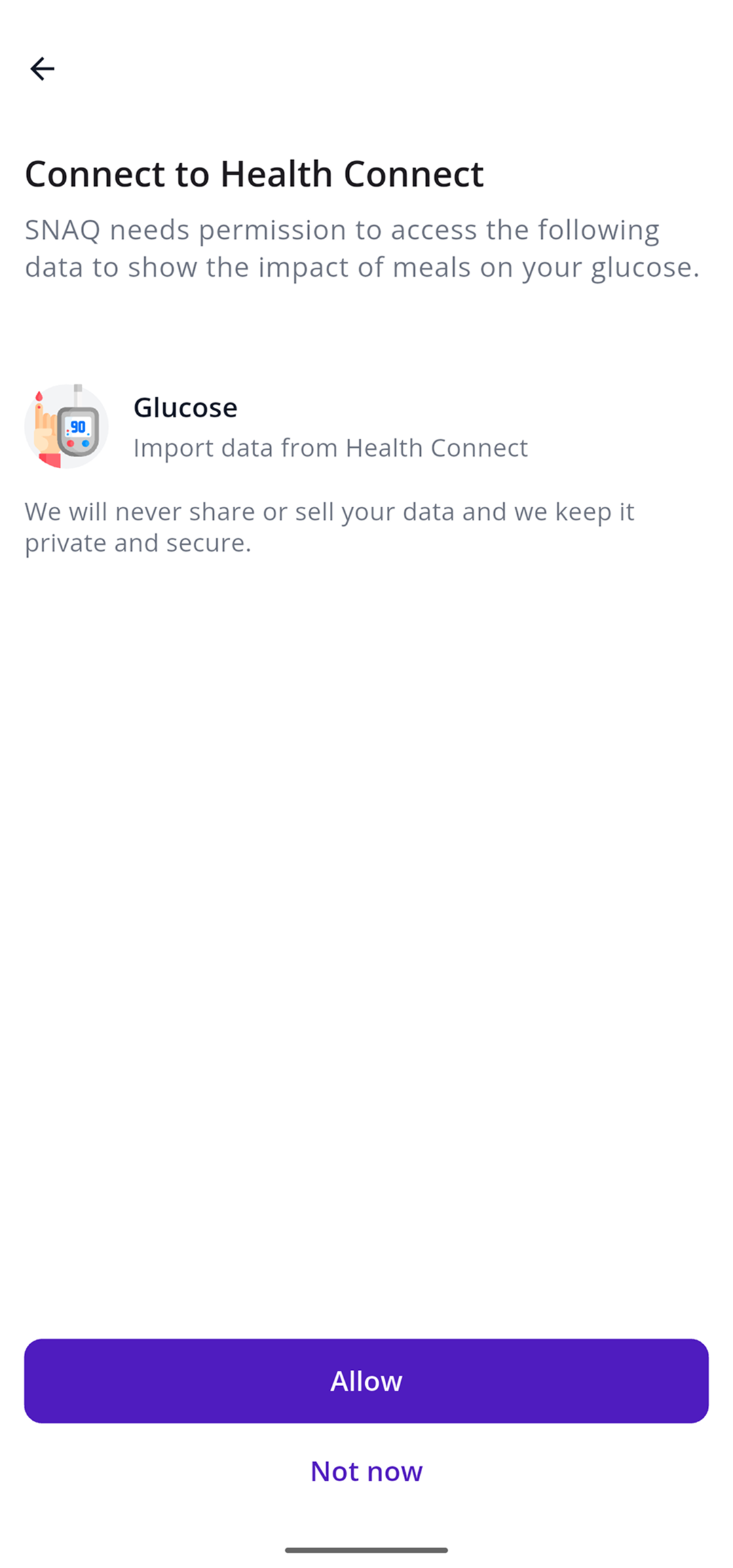
- Tap Next, then Allow.
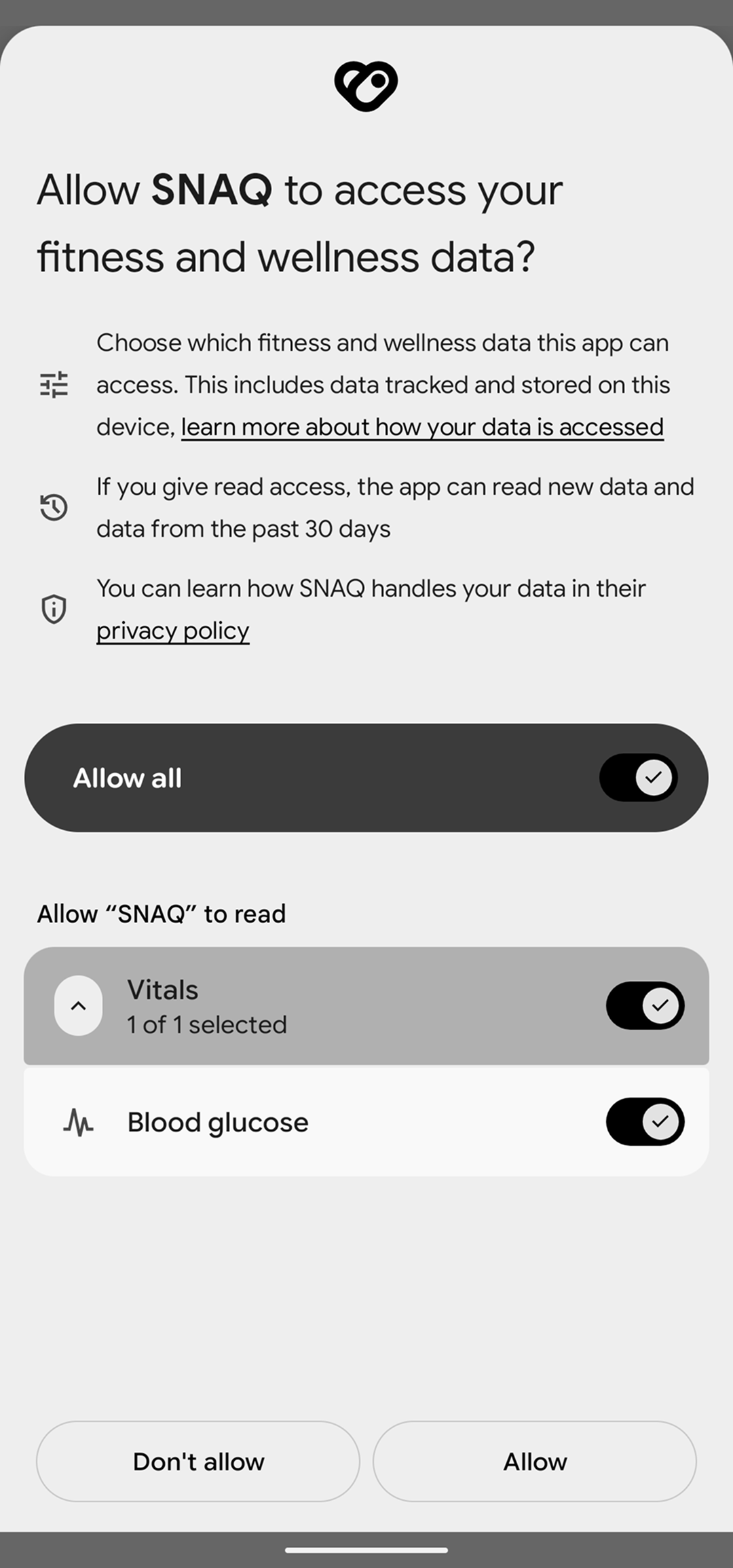
- Android asks whether SNAQ can access your fitness and wellness data. Leave Blood glucose on and tap Allow.
Check or change SNAQ’s access
In Health Connect, tap App permissions, then SNAQ, and check that Blood glucose is on.
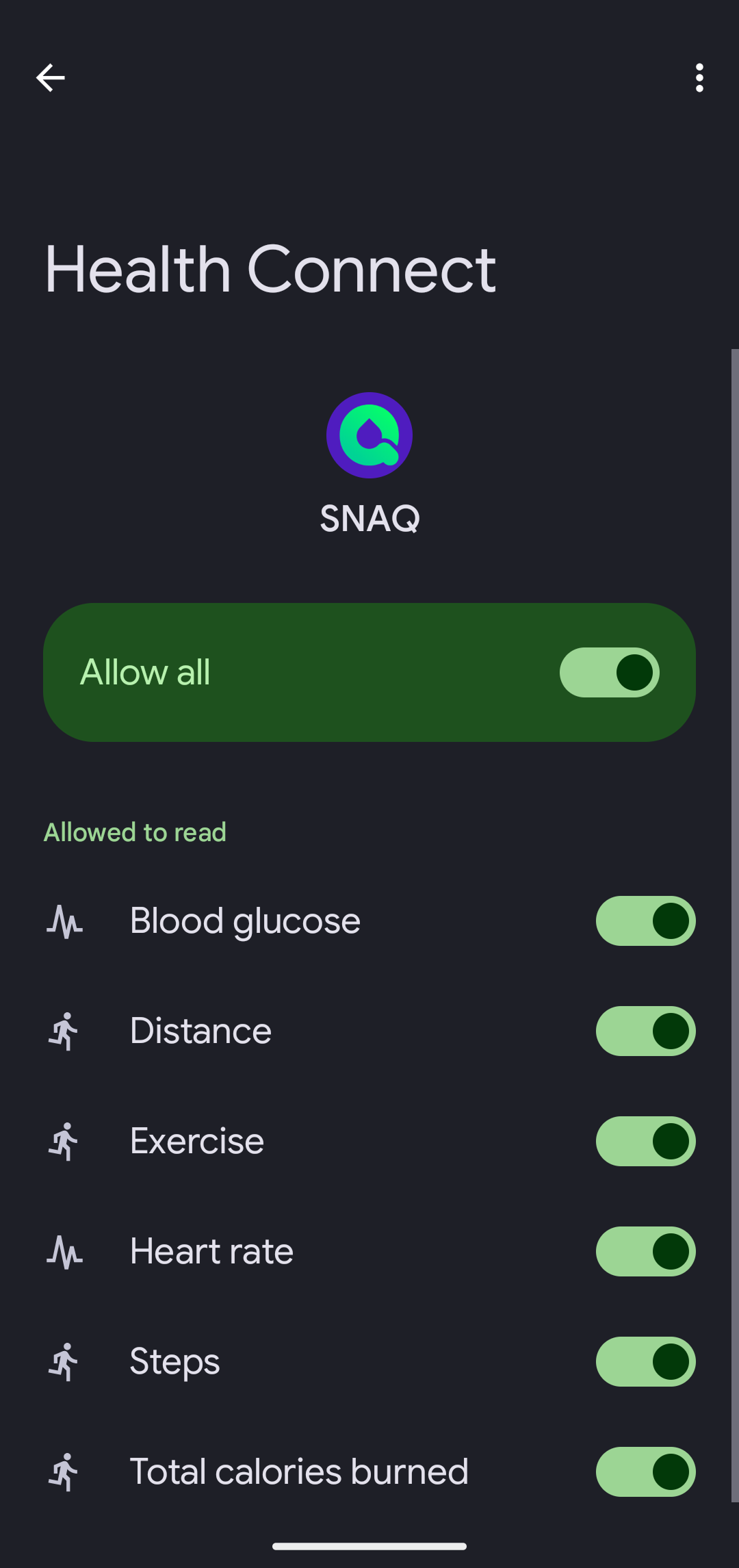
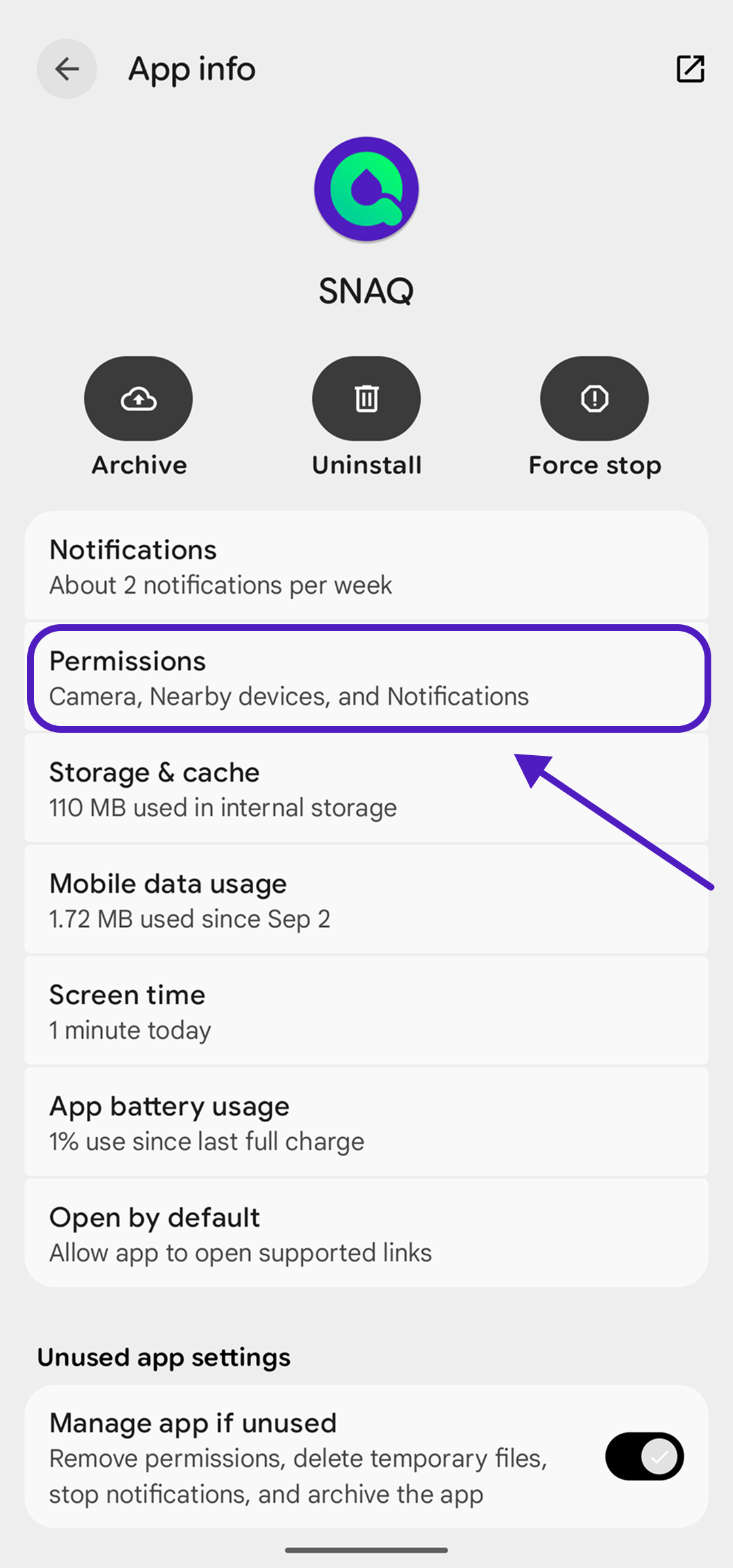
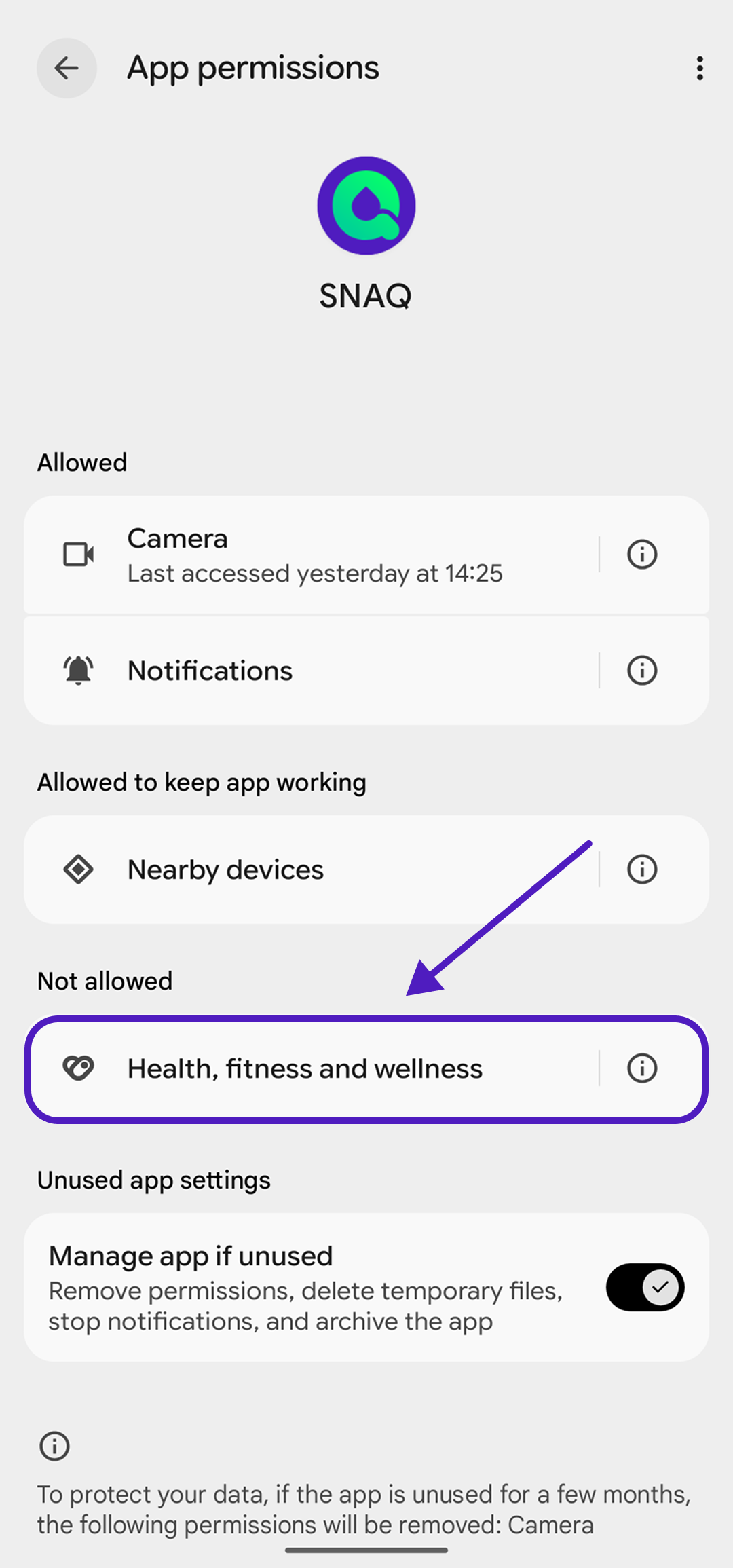
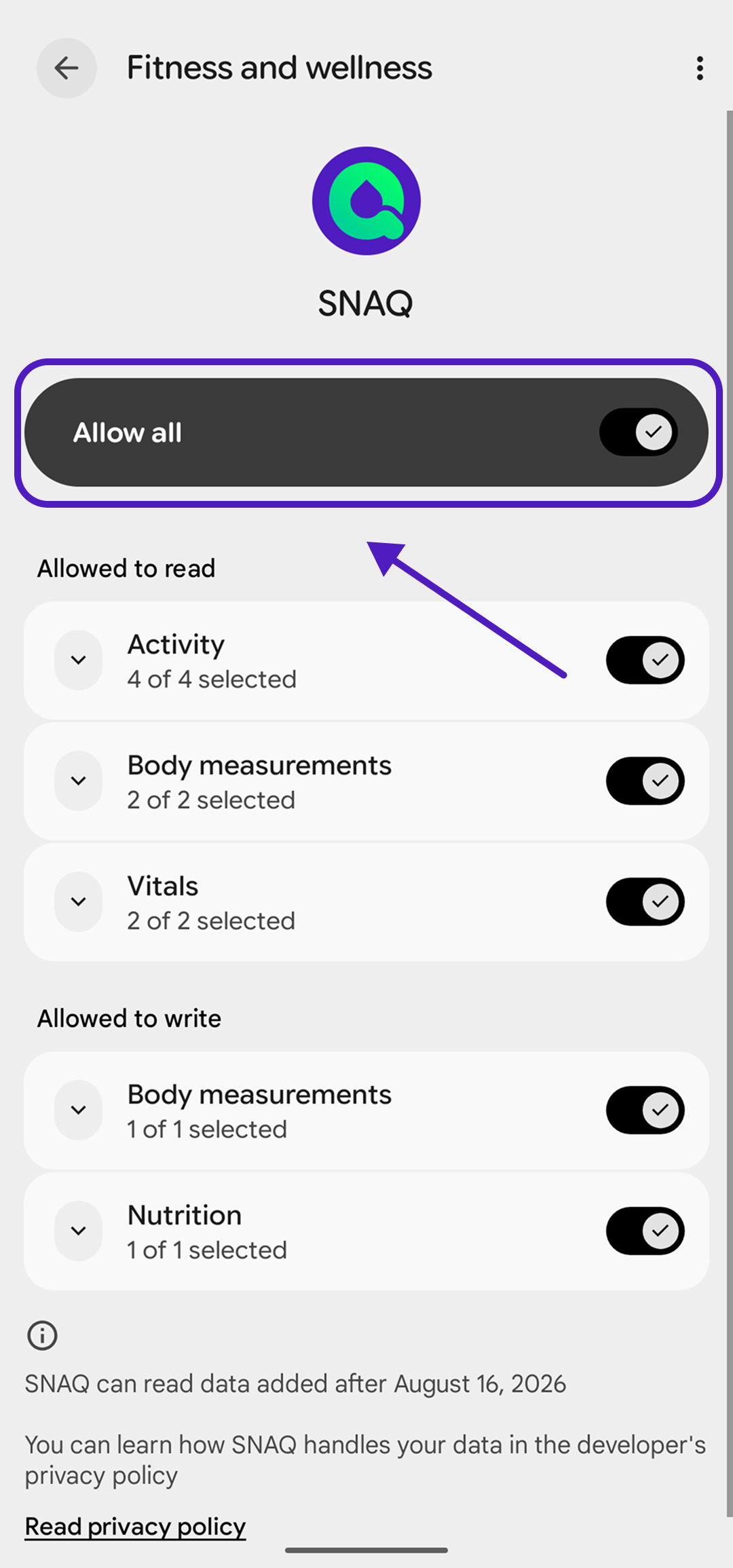
You can also start from the SNAQ icon. Long-press it, tap App info, then Permissions, then Health, fitness and wellness (some phones call it Health Connect). Turn on Allow all, or at least blood glucose.
Save meals to Health Connect
After your first saved meal, SNAQ asks once whether it can add your meals to Health Connect. If you said no, you can turn it on later in Health Connect under App permissions, then SNAQ.
Steps last checked against the app in September 2026.
Still stuck?
Email us at support@snaq.io and tell us what you've tried so far. We usually reply within one business day.